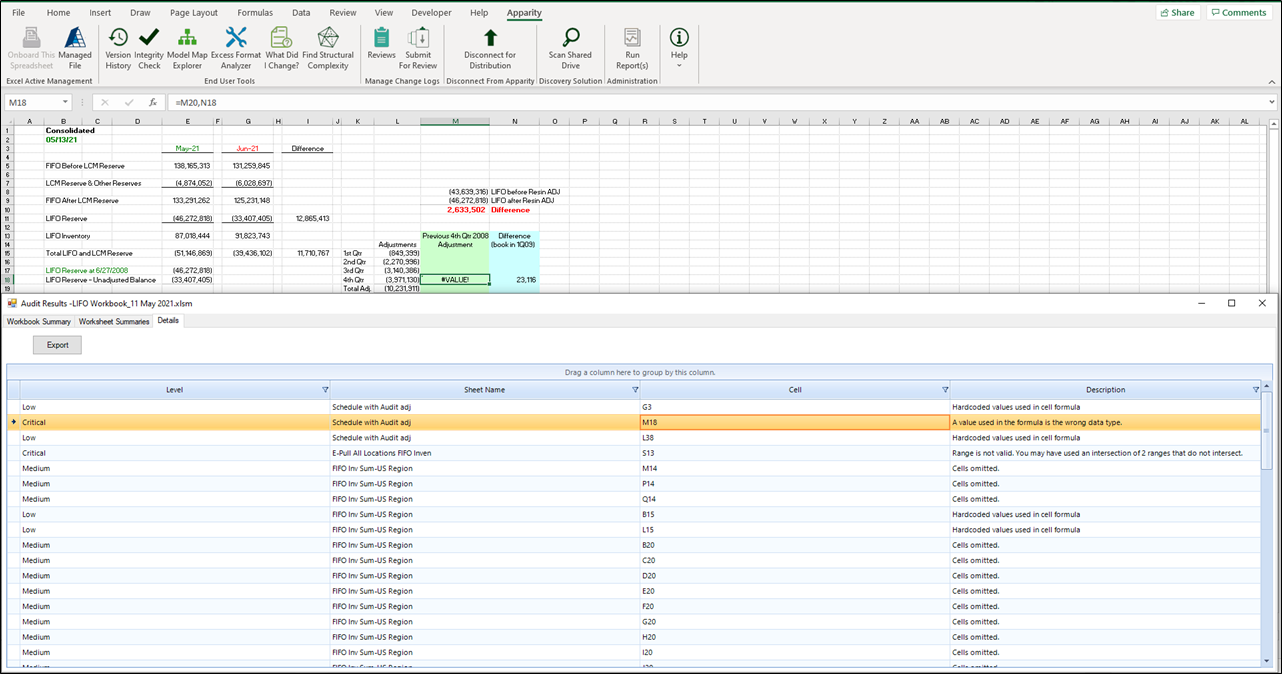
Q: Am I required to address all potential errors that are captured in the Integrity Check results?
Apparity’s Integrity Check feature is built to help identify potential errors within a spreadsheet. It allows the user to see the potential errors within their worksheet and to make the decision as to whether it is an error that needs to be addressed. Please note that not all “errors” listed will be required to be addressed.
Q: Are my Integrity Check results viewable by other users or captured in reporting?
Integrity Check is viewed as a pure end-user tool, therefore the results are not saved, used in central reporting, or sent to any other user. The results of Integrity Check are displayed so that the user can take necessary remediation actions, if necessary.
Q: Does my spreadsheet have to be Apparity-managed to use Integrity Check?
No. Integrity Check is available to all individuals with the Apparity Excel add-in and can be used on any spreadsheet, regardless of the Apparity management status.
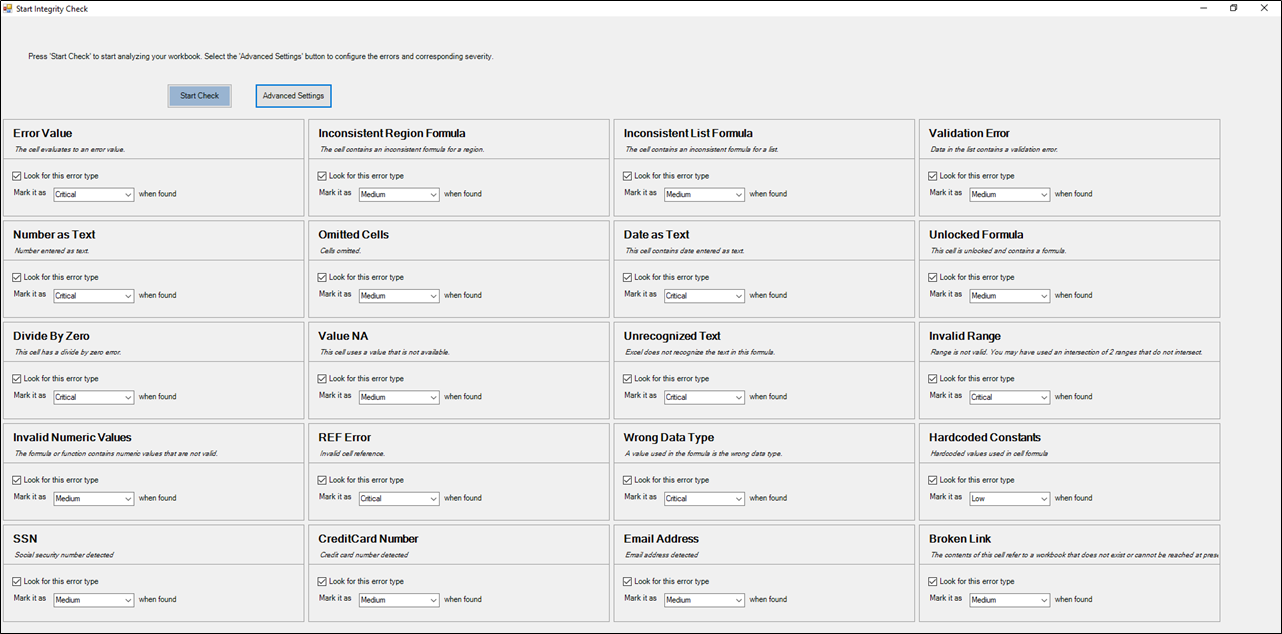
Q: What are the different types of errors that are captured, and how are they categorized (Low, Medium, Critical)?
The Integrity Check feature can be configured to your needs by using Advanced Settings. Using Advanced Settings, you can determine which errors you want to detect as well as the associated significance levels.
Q: How do I find the errors in my spreadsheet?
Navigate to the 'Details' tab of Integrity Check to see list of all errors (you can use tools to group/sort errors you'd like to focus on). Double-click on the cell containing the error you'd like to see and Apparity will navigate you to that cell in the workbook. If you have a single screen, resize your Excel and Integrity Check windows so you can see both (or toggle back and forth between screens).