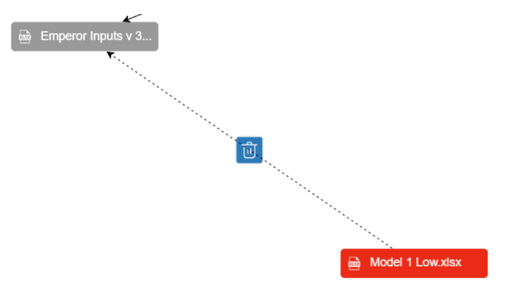
When Apparity is unable to automatically detect the presence of a connection, a user may be required to manually add a connection to complete the map. An example of when this may be necessary includes if a connection between two EUCAs is made through the manual copying and pasting of data from one EUCA to the other. In this case, Apparity will not be able to automatically detect the connection and would require user intervention.
1. Adding a Connection
To manually add a connection, a user will locate the specific node to which an inbound or outbound connection is missing and will right-click on that node.
Manual Connection Options
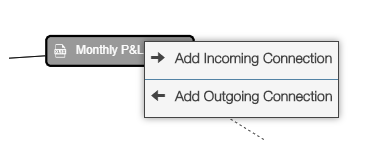
The user will then have the option to select to add either an incoming or outgoing connection. Selecting either option will then allow the user to search for the specific EUCA that they would like to manually add to the map. The EUCA must be known to Apparity, meaning that it must be an EUCA that has been discovered, registered, or onboarded into Apparity.
File Picker Window
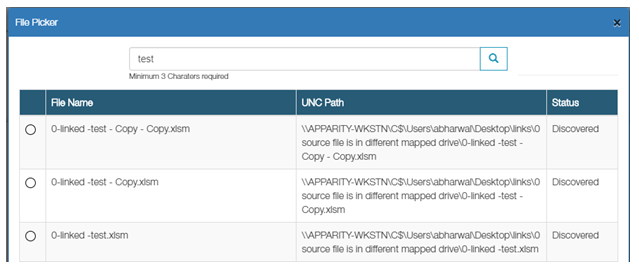
After selecting the appropriate EUCA, the map will update to show the new manual connection. This manual connection will be depicted through use of a dotted line to denote how the connection was captured in the map. This new manual connection will be persisted and will continue to appear as a connection whenever the map displayed.
2. Deleting a Manual Connection
In scenarios when a manual connection that was previously added is no longer relevant, the manual connection can be deleted from the map. To delete the manual connection, hover the cursor over the dotted line to make a blue Bin icon appear. Click on the Bin icon and confirm that you would like to delete the manual connection to have it removed from the map.
Delete Manual Connection