Q: How do I resize my Version History pane?
Current Version History Window: You are able to resize the Version History pane by dragging the sides of the window. Furthermore, the Version Index on the left side containing Lineage and All Copies can be expanded/collapsed horizontally by dragging the right side of the pane.
Legacy VH Pane (left side of the screen): You are able to resize the Version History pane as you would with any conventional pop-up box. Simply click on and drag a corner of the window to reconfigure it to the appropriate size. You can also minimize and maximize the box by clicking on the corresponding icons in the upper right-hand corner.
Q: Why are events not updating in my Version History pane?
If events like submitting a change log for review or approving a change log are not updating in your Version History pane, click on the Refresh icon to the right of Modification History section header. In the legacy VH pane, the Refresh button is directly in the pane. If the Version History still does not update, save and close out of your file and then re-open it. If it continues to not update, please contact your Apparity administrator.
Q: What actions can I take from the Version History pane?
By selecting any modification in the Modification History (or by right-clicking on a modified version in the legacy VH pane), users will be able to take the following actions:
- Create Read-Only Copy (Legacy VH pane: View this prior version): By selecting this option, you will launch a read-only copy of this modification timepoint in Excel. This copy will not retain the Apparity fingerprint and will not be tracked.
- Export (Legacy VH pane: Export this prior version): This option launches a copy of the modification timepoint as a full working copy without Apparity fingerprint and related controls. By selecting this option, you will remove this copy from Apparity, and all changes made to this copy will not be tracked by Apparity. The original version will still remain in Apparity.
- Restore (Legacy VH pane: Restore to this version): This will roll back the current version of the file to the selected modification timepoint. Any modifications created after the selected timepoint will remain in the Version History and remain accessible; there will simply be a new modification indicating the file has been rolled back to a previous version.
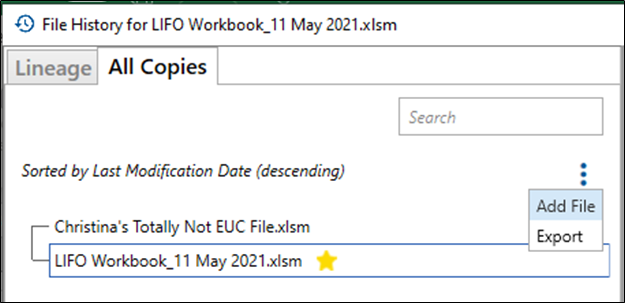
- Note: SharePoint files cannot leverage this functionality directly; to restore to an older modification using Apparity, use "Export" and "Add File" features.
- Compare: This action adds the selected version of the file to a compare at the bottom of the pane, then allows the user to select another version to "Add to compare". Once two versions are selected, the user can click "Compare" and generate a change log between two selected versions. This is an initiation method for a change log review.
- Legacy VH pane only: Compare with
- selected versions: This allows a user to generate a change log between two selected versions. This change log can be used in a change log review.
- current/open version: This generates an in-session change log between the version of the spreadsheet currently opened in Excel and the previously modified version. This log cannot be used to initiate change log review.
- Legacy VH pane only: Check-in comments: Comments are automatically added to this version when the spreadsheet is updated, saved and closed; Include Modification Time, File, User and Comments.
- Copy comments to clipboard – Allows users to copy the contents held within the comments section.
- View comments – Allows users to view the Modification Time, File Path, User who modified the file, and user comments inputted upon save and close.
Q: Why can't I see the other copies of my file in the Lineage pane?
Try clicking the "Show Full Lineage" file beneath the Lineage header to see all of the currently open file's direct parentage (e.g., the file it was created from, the file that file was created from, etc.). If you still cannot see the file, click on the All Copies tab of the Version Index. All Apparity-managed copies of the file you have open should appear here in order of Last Modification date (most recent at the top, oldest at the bottom). Additionally, you can leverage the Search functionality to find a specific file name. If you still cannot see the version you're looking for, it's likely not recognized as an Apparity-managed copy of your currently open file.
Q: I made changes to my file and saved it. Why don’t I see the changes reflected in the Version History pane?
In order for the changes to register within Apparity, the file must be saved and closed. The Version History pane will not update to reflect the changes until the file is saved, closed, and then re-opened.
Q: What is the comment box that appears after I save and close my file?
The comment box allows the user to enter a brief description of the changes that were made during that session of Excel. The comments entered will then appear on the Version History pane to allow the user to easily identify specific versions of the file.
If the user does not enter any comments and only presses OK, the Version History pane will be updated to show File Modified.
Q: What does Add File feature do?
The Add File option allows users to add a file to the version history of an existing Apparity monitored spreadsheet. This is typically an older version of the spreadsheet that was created prior to initial onboarding, but can also be used to connect subsequent versions from files disconnected (intentionally or accidentally) from Apparity. Spreadsheets onboarded using the Add File button will have the following attributes:
- If Context Hints are turned ON (Managed File > Advanced Settings), they can only be compared to subsequent versions stemming from this onboard but cannot be compared to any other versions resulting from separate onboards.
- They will automatically inherit the properties of the originally onboarded spreadsheet (i.e., ID and name, permissions and restrictions)
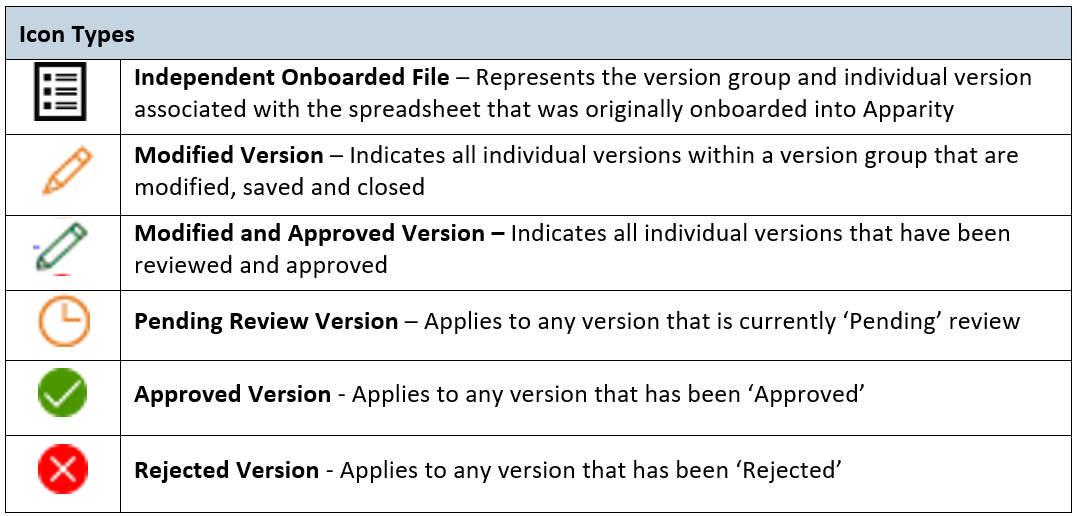
Q: What do the different icons mean in the legacy VH pane?
Users can see the following icons in their Version History pane, depending on the actions they have taken: