
In certain scenarios, EUCAs may contain very complex and dense connections to other EUCAs across the organization. MME provides various features and tools to allow the user to better interpret the visual depiction of the interconnectedness between EUCAs. Additional details for each node can be obtained by hovering the mouse over the specific node. These include the full EUCA name, EUCA type, last modified date, and last modified user.
The MME Navigation Pane allows the user to effectively move through the displayed nexus of EUCA connections in a meaningful way. To modify the appearance of the MME model, users can make more detailed modifications in the MME Settings within the navigation pane.
MME Navigation
MME Navigation Pane

1. Display Level
Users can adjust the display level to show the connected EUCAs within a certain range. The display level ranges from 1 to 20.
2. Search Node
The Search Node functionality allows users to identify specific nodes in a map by searching for the EUCA name. Nodes that are identified in the search will be outlined in black. To better understand the connections to these specific nodes, the user can click on the node which will either dim or hide all connections in the map (see Focus Type) that do not have a first level connection to the selected node. This allows the user to focus only on first level connections and dependencies to other EUCAs.
3. Zoom
Depending on the number of connections in a particular map, it is useful to be able to zoom in and out on different clusters.
MME offers the following options to optimize the map display:
- Zoom In: Increases the magnification of the map.
- Zoom Out: Decreases the magnification of the map
- Fit to Screen: Adjusts the presentation to fit all connections on the map display screen.
4. Legend
MME contains specific shapes and colors to allow the user to quickly identify the categories/types of EUCAs that are part of the map, as well as the different connection types.
MME Legend
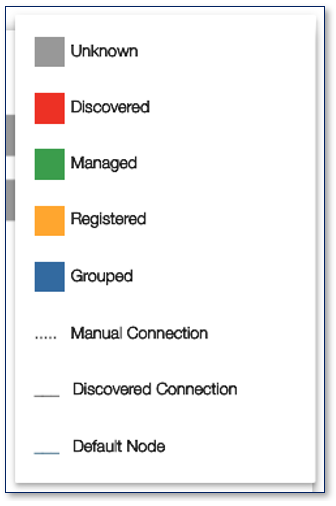
- Unknown (Gray): EUCAs that were identified as having a connection to a Discovered file, but were not part of the Discovery scan. MME knows that these files exist because a Discovered file has a connection to it, but MME does not know anything else about this file since it was not in the Discovery scan. This unknown file may or may not have additional connections itself.
- Discovered (Red): EUCAs that were identified, scanned, and analysed as part of Apparity’s Discovery process. All outbound and inbound connections to a Discovered EUCA will show in the map.
- Managed (Green): EUCAs that were onboarded into the Apparity Active Management solution. Managed EUCAs can also be Discovered.
- Registered (Yellow): EUCAs that were registered in Apparity’s Inventory Management Solution but have not been onboarded into Apparity. Registered EUCAs can also be Discovered. Examples of why a user may register but not onboard a EUCA: 1.) Determined not to be a critical EUCA that requires access, version, and change management controls, but still important to track 2.) It is an application or EUCA type that is not currently supported by Apparity at this time (e.g., scripts, csv, txt, etc.).
- Grouped (Blue): Nodes that contain multiple EUCAs that were grouped together either through similar file name and structure or through identification of managed files of the same family.
- Manual Connection (Dotted Line): Depicts a connection that was manually added by a user and was not automatically identified through the Discovery scan.
- Discovered Connection (Solid Line): Depicts a connection that was automatically identified through the Discovery scan.
- Connection Arrows: Arrows pointing to a node indicate that data is flowing from the source node into the node which the arrow is pointing towards.
5. MME Settings
The MME Settings section provides users with an array of viewing options to give a customized display. This individual features of this section are explained in further detail below.
Settings
1. Select Layout
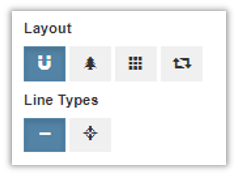
Depending on the number of connections and flow of data between EUCAs, MME allows the user to select from three default layouts to best visually present an initial view of the maps. After selecting one of the three views, users are then able to manually rearrange and drag and drop nodes into different areas of the presentation window.
MME Layout Options
Layout & Line Types
- Forced Directed Layout: Presents those EUCAs with the highest number of connections in the middle of the layout and those with the fewest number of connections on the outside
- Tree Layout: Presents the connections of EUCAs in a hierarchical layout
- Grid Layout: Presents the EUCA connections in a stacked grid layout
- Layered Diagraph Layout: Presents the EUCA connections in a layout with stacked layers indicating hierarchical relationships
- Normal Link: Connects the EUCA links with standard lines
- Orthogonal Link: Enhanced EUCA link connections with relational diagrams
2. Nodes
Node Settings
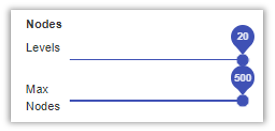
- Node Levels: adjust the display level to show the connected EUCAs within a certain range
- Max Nodes: set the maximum amount of files to be displayed
3. Group
MME's grouping functionality is particularly useful when there are multiple connections to different versions of the same EUCA. For example, EUCAs that are rolled forward on a monthly basis, depending on the connection methods established in these EUCAs, may have 12 different versions of the same EUCA to show on the map in a given year. MME’s grouping feature allows the user to consolidate these 12 different versions into one single node.
MME Grouping

To limit the noise, MME offers a grouping feature which will allow the following three options:
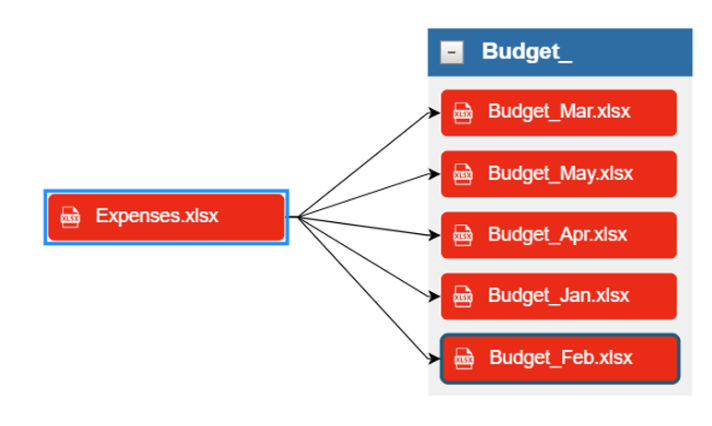
- Group Similar File Names: MME will group together EUCAs that have similar file names and file structures into one node. These nodes will be blue and will be expandable to see all of the different versions of the EUCA that comprise of the one node.
- Group Managed Files of the Same Family: MME will group together managed EUCAs that are a part of the same family. This means that once an EUCA is onboarded into Apparity, any subsequent versions that are created, whether by change in EUCA name or location, will automatically be grouped together in MME.
- No Group: MME will show each individual version of an EUCA as a separate node in the model map.
Users can expand and collapse the groups to see the specific EUCA versions that make up the node.
MME Group Collapsed

MME Group Expanded
4. Focus Type
In complex maps with numerous degrees of connections, it is oftentimes useful to focus on the first level connections of a specific node. First level connections refer to EUCAs that are directly connected to one another through either a direct inbound or outbound connection.
MME Focus Type
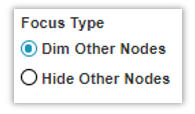
To eliminate noise and filter out indirect connections to a specific EUCA, MME offers the following options:
- Dim Other Nodes: Dims those nodes that do not have a direct connection to the specific node that the user selected.
No Nodes Selected

Expenses.xlsx Node Selected with the Dim Other Nodes Option

- Hide Other Nodes: Hides those nodes that do not have a direct connection to the specific node that the user selected
No Nodes Selected

Expenses.xlsx Node Selected with the Hide Other Nodes Option

5. Node Text Display Options
Text Display Options
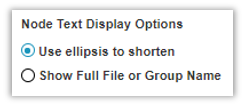
- Use Ellipsis to Shorten: will show an abbreviated form of the file name
- Show Full File or Group Name: will show the entire name