
The Excess Format Analyzer is a useful tool that should be run prior to onboarding. Its aim is to address 'file bloating,' which is the excessive accumulation of unused cells within a workbook. This typically occurs when a user navigates to an outlying area of a workbook, which in turn increases the file size, despite not entering values in these cells. Bloated files tend to affect performance, specifically when opening, saving, and closing the file. It should be noted that the Excess Format Analyzer does not remove bloated cells. It simply identifies them in a detailed breakdown, so you can reduce the file size to your discretion.
How to Run the Excess Format Analyzer
1. Click on the Excess Format Analyzer button in the Apparity Ribbon.
Figure 1: Excess Format Analyzer button

2. The Excess Format Analyzer window will populate. Click on Analyze to run the tool.
3. Once the analysis is completed, the results will populate in the bottom of the window. You will then be able to review specific tabs and cell ranges where file bloating was detected in the workbook.
Figure 2: Excess Format Analyzer results
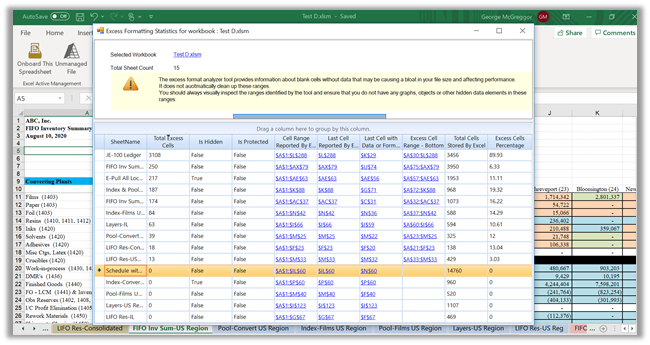
4. In the Excess Format Analyzer results, the Total Excess Cells column shows the total number of potential excess cells on that specific tab and the Excess Cell Range - Bottom column displays areas where potential file bloating was detected. To view these areas in the worksheet, simply click on a listed range link within the Excess Cell Range - Bottom column. You will then see the area highlighted in the worksheet.
Figure 3: Removing Excess Formatting
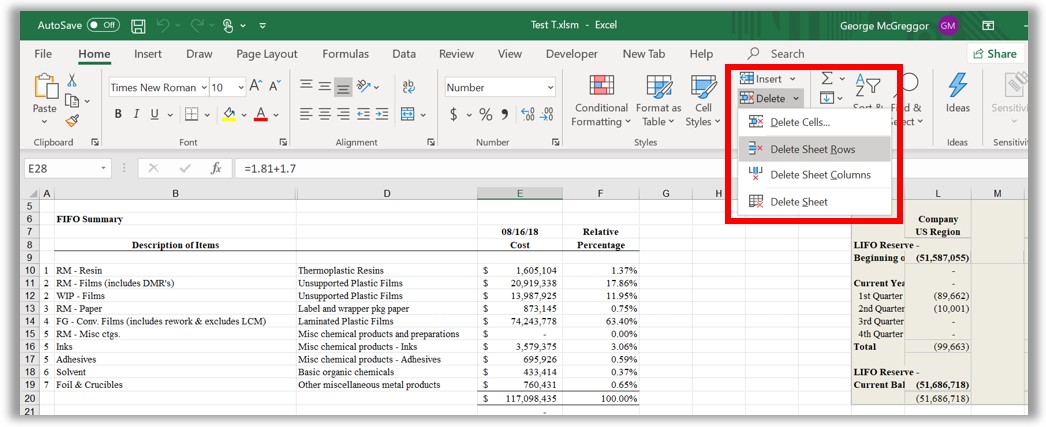
5. To manually remove excess formatting, make sure that the range in question is highlighted (Apparity does this by default as demonstrated in Step 4). Then click on the Home tab, select Delete in the Cells section, and click on Delete Sheet Rows as depicted in Figure 3. After the excess formatting is removed, Save the file to record your changes.
6. To verify that the excess formatting is removed, simply go back to the Excess Format Analyzer results, click on Analyze to rerun the tool and find the sheet name that you previously modified. It should be moved towards the bottom of the list, and the Total Excess Cells will be reduced and the cell range link will be removed from the Excel Cell Range - Bottom column.
For more useful tips on what you should do prior to onboarding a file, please refer to Appendix A: Onboard Spreadsheet Preparation.
NOTE: Apparity does not automatically remove cell ranges where potential excess formatting is detected. Rather, it is left to the user's discretion to verify and remove these components of the worksheet.